Appearance
Item configuration
Where you set an item's values and check the result before it goes to air.
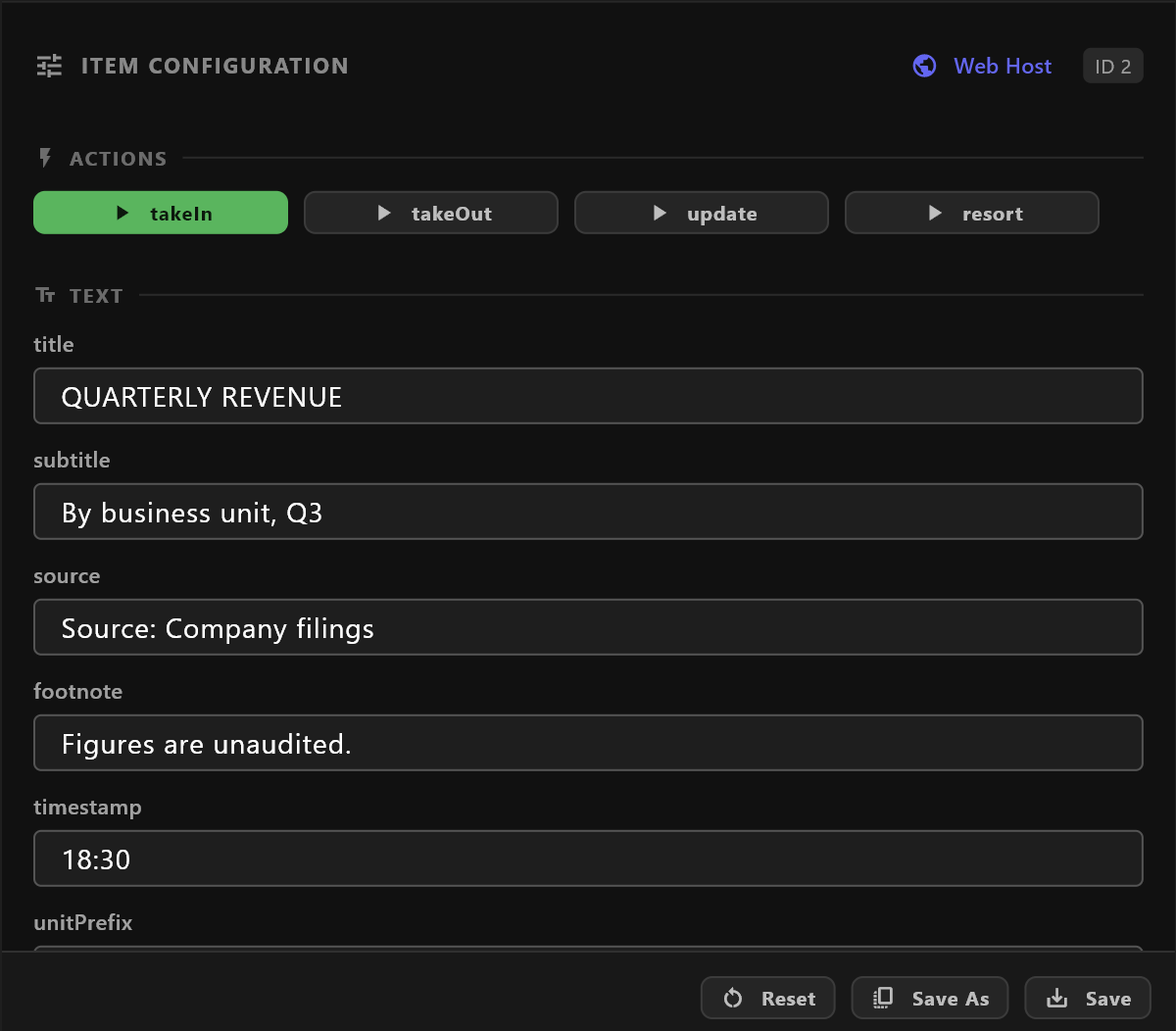
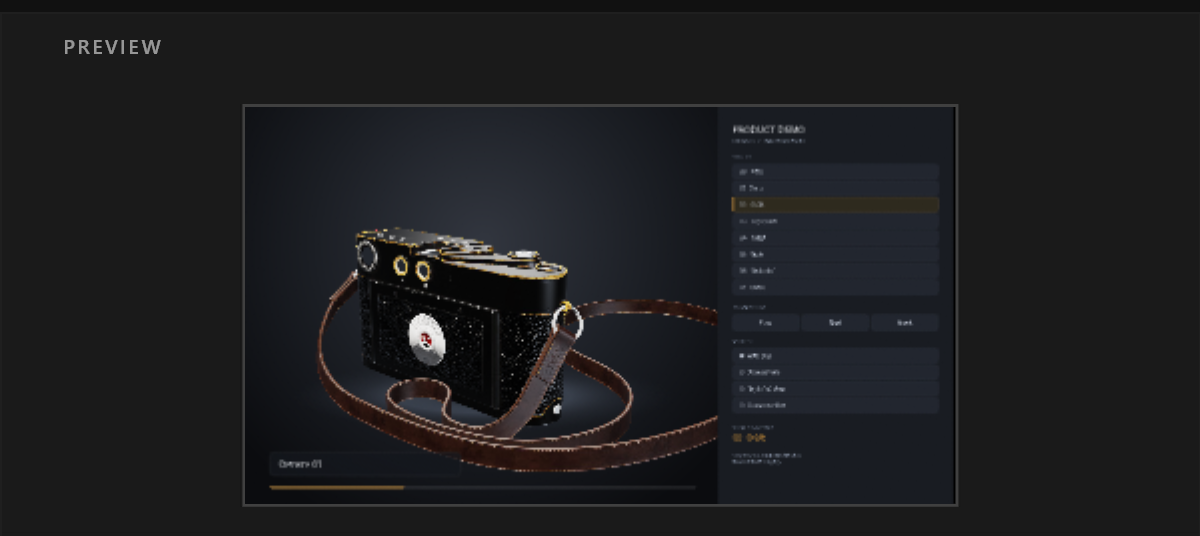
Select an item and Preview shows it at the top, with Item Configuration below. What you change here changes the item, not its template.
Change the values
The values come from the item's template, grouped by kind:
| Section | Holds |
|---|---|
| TEXT | Words: titles, names, captions. |
| PALETTE | Colours. Select a swatch to pick a colour. |
| VALUES | Numbers. Type a number, or drag across it. |
| STATES | On and off switches. |
| ASSETS | Images. Browse Assets chooses one; Clear Image removes it. |
Some choices from a fixed list show Current: and an edit button.
Each change shows in the preview at once and is kept with the item automatically. It does not change what is on air.
Try the animation: ACTIONS
ACTIONS has a button for each of the template's actions, such as takeIn and takeOut. They play the animation in the preview only, so you can check it. Nothing goes to air from here.
Reset, Save As and Save
| Button | What it does |
|---|---|
| Reset | Reloads the item's saved values into the panel. |
| Save As | Adds a copy of this item to the rundown, with the values now in the panel. |
| Save | Saves the values to this item. |
Web Host: control the item from a browser
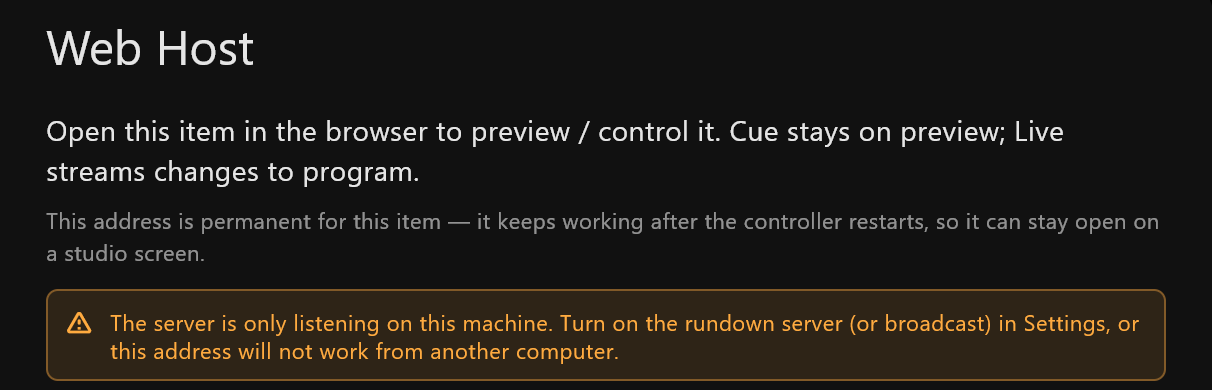
Web Host, at the top right of Item Configuration, gives the item two permanent web addresses, so a touch screen or another computer can open it in a browser:
| Address | What it does |
|---|---|
| CUE (preview) | Changes made there stay on preview. |
| LIVE (program) | Changes made there go to program. |
Open Cue and Open Live open the address and copy it. New link replaces the addresses, after asking: the old ones stop working at once, and any screen showing them loses its connection until it is given the new one.
The addresses keep working after airZ Controller restarts. For another computer to reach them, the rundown server must be on in Settings, or airZ Controller must have a Broadcast licence; the dialog warns you when they will only work on this computer.
3D on a touch screen
A 3D layer draws only in a browser that supports WebGPU, and browsers allow WebGPU only on a secure (https) address or on the computer running airZ Controller itself. Opened from another computer over these http:// addresses, the rest of the scene plays but the 3D layer stays empty.