Appearance
The window at a glance
What each part of the airZ Controller window is for, so you know where to look during a show.
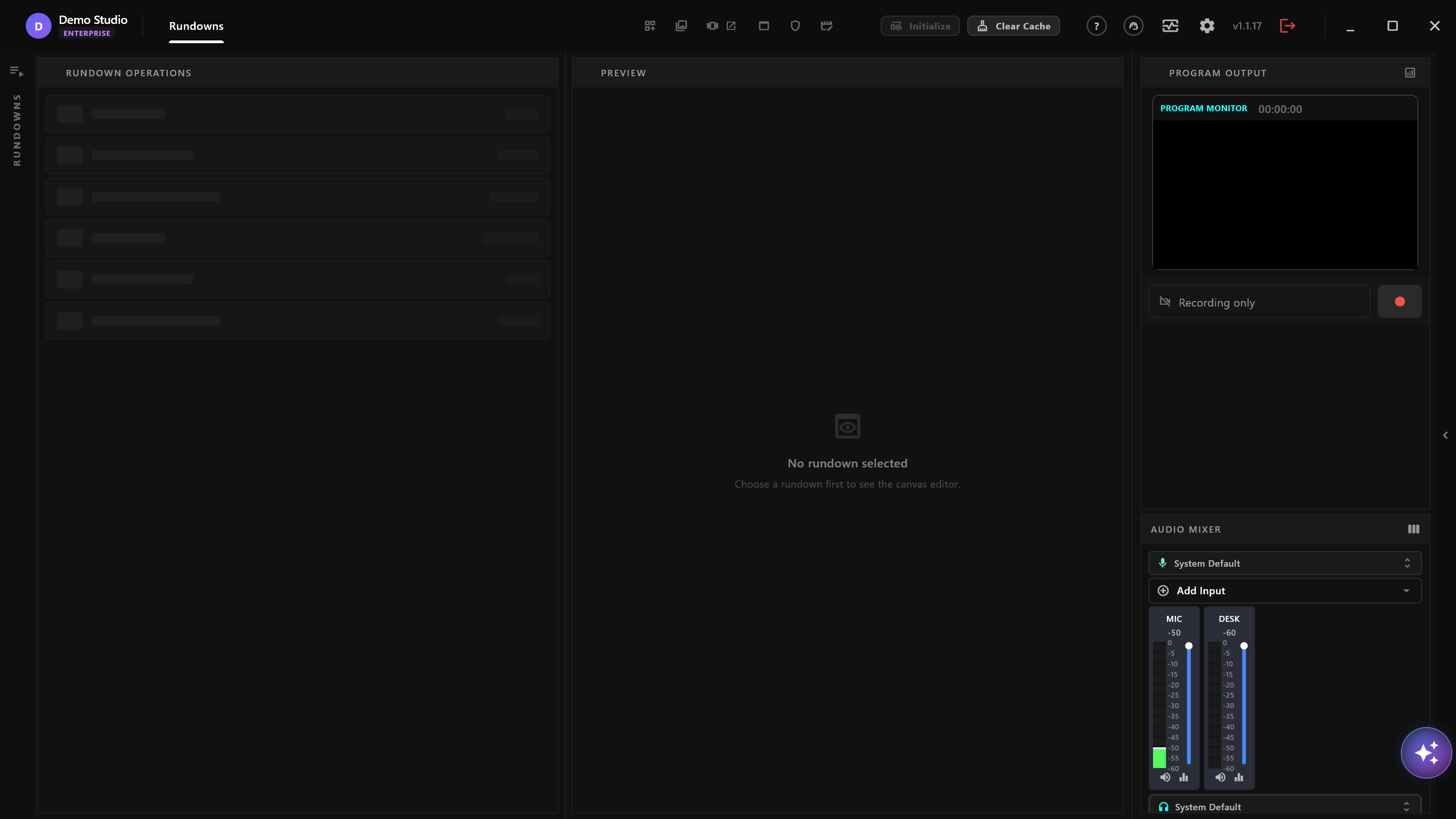
The window reads from left to right the way a show runs: you choose what to play on the left, check it in the middle, and watch what is on air on the right. The title bar across the top opens everything else.
The title bar

From left to right:
| Part | What it is for |
|---|---|
| Studio name and plan | Who this airZ Controller is signed in as, and the plan it runs on. |
| Rundowns | The main screen, shown here: build the show and put it on air. |
| Templates | Opens the template library over the window. |
| Assets | Opens your images, video and other media. |
| Ticker | Opens the ticker. The arrow beside it opens the ticker in a window of its own. |
| Interfaces | Opens your operator interfaces. |
| Moderation | Opens live chat moderation. Pro |
| Video Editor | Opens the video editor. |
| Help (?) | Opens help. F1 does the same. |
| Support | Opens your support requests. |
| System Health | Opens a health report of airZ Controller in your web browser. |
| Settings | Opens all settings. |
| Version number | The installed version. Select it to see the software licences. |
| Log Off | Signs this airZ Controller out and returns to the sign-in screen, after asking you to confirm. |
With a Broadcast licence, two more buttons appear before Help, and the buttons from Templates to Video Editor show as icons to make room; point at one to see its name.
| Part | What it is for |
|---|---|
| Initialize | Prepares every item of the open rundown on this airZ Controller, so selecting and taking them does not pause the first time. While it works it counts the items; nothing on air changes. Open a rundown first. Broadcast licence |
| Clear Cache | Takes every graphic off air on every connected engine and on the program output, and empties the template caches, after asking. Broadcast licence |
The main screen
| Area | What it is for |
|---|---|
| RUNDOWNS (the narrow rail at the far left) | Opens the list of rundowns. Choose one to work on. See Rundowns. |
| Rundown Operations | The items of the open rundown, in running order. See Working with items. |
| Preview | The selected item, where you check it before it goes to air. |
| Program Output | What is on air now, with the stream and recording controls under it. |
| Audio Mixer | Your sound sources, their levels, and where the sound goes. |
Until a rundown is open, Rundown Operations and Preview say so, and the program monitor stays black.
See also
The other pages of Start here follow: installing and signing in, plans and the Broadcast licence, and your first show.