Appearance
Program outputs
How to send airZ Controller's program to other equipment: over the network as NDI, or out of a DeckLink card as SDI or HDMI.
The program is what PROGRAM MONITOR shows. Besides streaming and recording, airZ Controller can hand it to a vision mixer or router in two ways:
| Output | Goes out over | Plan |
|---|---|---|
| NDI | your studio network, to any NDI receiver | Pro |
| DeckLink | an SDI or HDMI port of a Blackmagic DeckLink card | Enterprise |
Both send the program at its own size: Resolution and Frame Rate in Settings › Output.
Restart after changing resolution or frame rate
The program keeps the size and frame rate it started with. After changing Resolution or Frame Rate, select Apply, then restart airZ Controller before going on air.
Until you restart, airZ Controller says so: the new format applies after the restart, and the program, the stream and recordings stay at the format they started with. A stream started before the restart uses that same format, and says which.
NDI output
Pro
Open Settings › NDI Output.
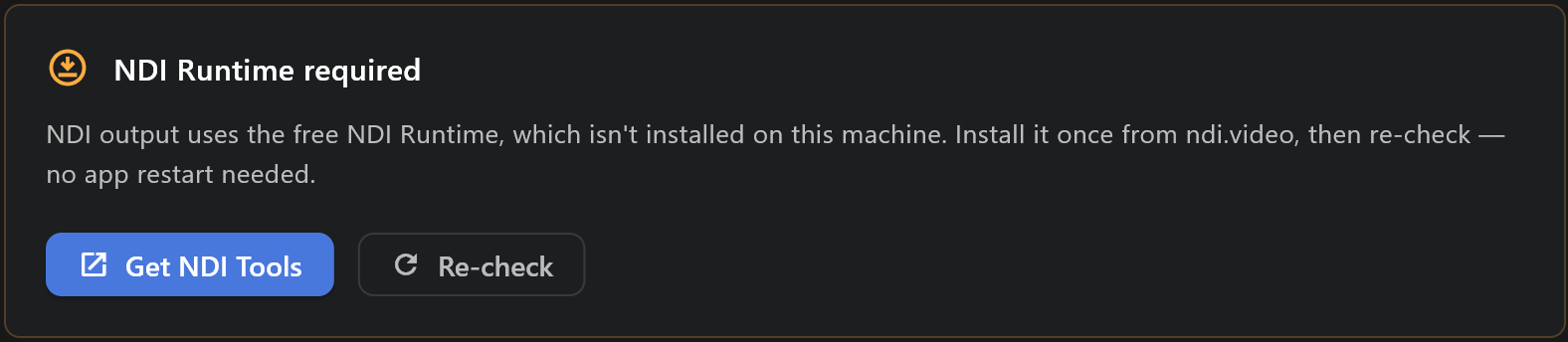
NDI output needs the free NDI Runtime. When it is missing, the page says NDI Runtime required: select Get NDI Tools, install it, then Re-check. airZ Controller does not need restarting.
- Name the source in NDI source name. This is the name receivers list.
- Select Start output. If the program is not running yet, it starts.
While it runs, the card reads Sending as and the name, with the size and frame rate, how many receivers are connected, and whether alpha is on. The name cannot be changed while the output is live: stop it to rename.
Stop output stops it at once, without asking.
Advanced options
| Option | What it does |
|---|---|
| Include alpha (Fill + Key) | Sends transparency, so a receiver can key the graphics over its own pictures. |
| Access groups (optional) | Publishes the source only to receivers in the named groups. Receivers on the default group will not see it; a warning says so. Leave it blank for normal use. |
Changes to these take effect the next time the output starts.
DeckLink output
Enterprise

Open Settings › Hardware Output and select Start Output. The program must be running.
In the dialog, choose:
| Choice | What it is |
|---|---|
| DEVICE | The card and port. Cards with several ports list each one. |
| OUTPUT MODE | The format the port sends, such as 1080i59.94. The program is scaled to it. |
| VIDEO OUT | SDI, HDMI or component, as the card allows. |
| LATENCY PROFILE | LOW for the shortest delay, SAFE to avoid dropped frames. NORMAL sits between. |
When no card is found, the dialog says No DeckLink Devices Found: fit a card and install Blackmagic's Desktop Video drivers.
While it runs, the card reads Active on and the device, with a red LIVE badge, and a line with the format and any dropped, late or repeated frames. Stop Output stops it at once, without asking.
The choices are not kept: choose them again each time you start.
Fill and key
Broadcast licence
With a Broadcast licence, the dialog also offers keying for a vision mixer: KEYER MODE, a key output (the alpha matte) and straight fill, a separate KEY DEVICE port for the key, the SDI fill format, and Wait for Reference (Genlock). The dialog warns in amber about anything unusual, and in red about anything that would stop the output from starting.
When airZ Engine uses the card
If airZ Engine runs on this computer, turn on Disable Local DeckLink Previews in Settings › airZ Engines, so airZ Controller leaves the card's inputs to the engine. It does not affect DeckLink output.